Can you update your own website? A tour of a real admin panel
Prices, products, blog dates and visitor numbers: the jobs a business owner should never have to phone a developer for. Here is what they look like in an admin we built, on a laptop and on a phone.


Part 5 of 5 Buying a website Show all 5 parts Hide
- 1Choosing a web designer
- 2What a website quote includes
- 3Website cost in Kenya (2026)
- 4Who owns your website
- 5Your website admin
Key takeaways
- A good admin lets you change a price, add a product or move a blog post without calling anyone.
- The price box is the one number the site trusts: the quote calculator, the cart and Google all read it.
- Blog posts given a date go out by themselves, in Nairobi time, and the calendar shows the gaps.
- Visitor numbers counted by your own site come with a plain-words summary and mark visits that look automated.
- Every Omokah website comes with an admin panel and training. What sits inside it depends on what your site does.
One question comes up in almost every first meeting about a new website: can I change things myself, or do I have to call you every time? It is the right question. A site you cannot update goes stale within months, and an owner who waits two days for a developer to change one price stops bothering.
So here is a real answer, with real screens. Everything below comes from the admin panel of a Nairobi print business we built for. We took the screenshots on 12 November 2026 without changing anything, and hid the business’s name, its staff and its figures. Your own admin may hold more or fewer sections, depending on what your site does, but the jobs are the same.
An admin panel is the back office of your website
Visitors see the front of your site. You sign in to the back, where the same pages appear as forms you can edit. Change a number in the back, press save, and the front shows the new number to the next visitor. That is all an admin panel is.
The one in this tour is arranged the way the business thinks, not the way a programmer does. Down the left side sit Dashboard, then Leads & orders and Messages under Operations, then Products & services, Photo library and Blog & publishing under Business, and finally Settings and Account & team. We left the enquiries and messages screens closed: they are full of real customers.
Signing in. You get a private link and your own login at handover. Bookmark the link on your phone. Never post it on social media or in a shared group, and give each person who helps you their own sign-in rather than your password. If you ever lose access, the person who built the site should be able to reset it the same day.
Changing a price, or adding a product
This is the screen most owners open first. It lists everything the business sells, with a row of counts across the top: how many items there are, how many are on the website, how many are drafts, and how many have no price or no photo. Those last two should stay at zero. A product with no photo looks abandoned, and one with no price gets fewer enquiries.
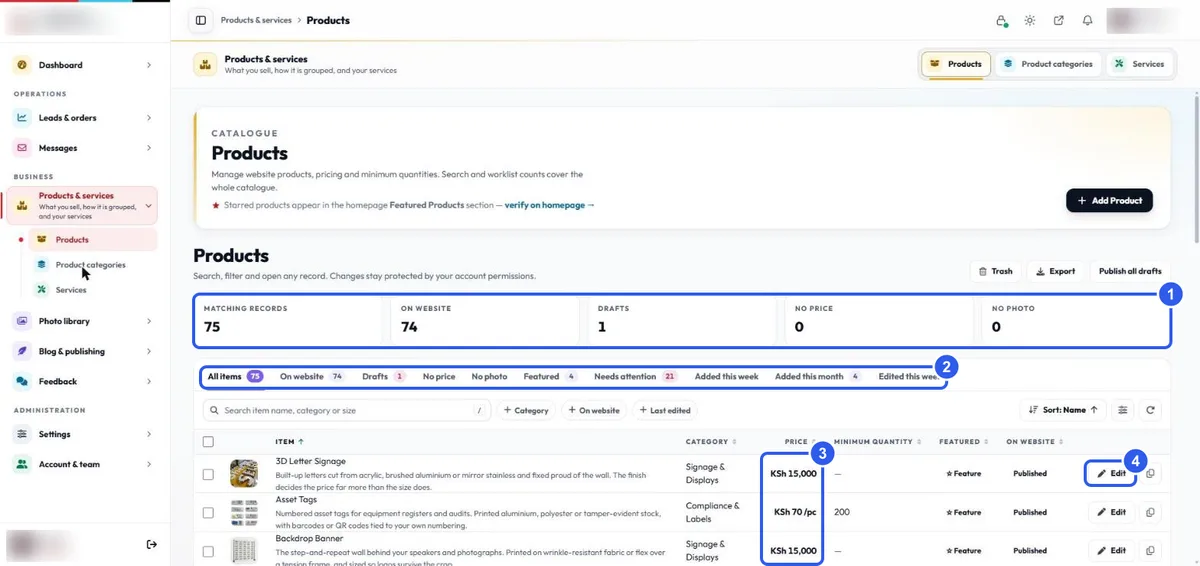
The tabs under the counts do the sorting for you: Needs attention gathers items with something missing, and Featured shows the ones starred for the home page. Tap Edit on any row and the product opens.
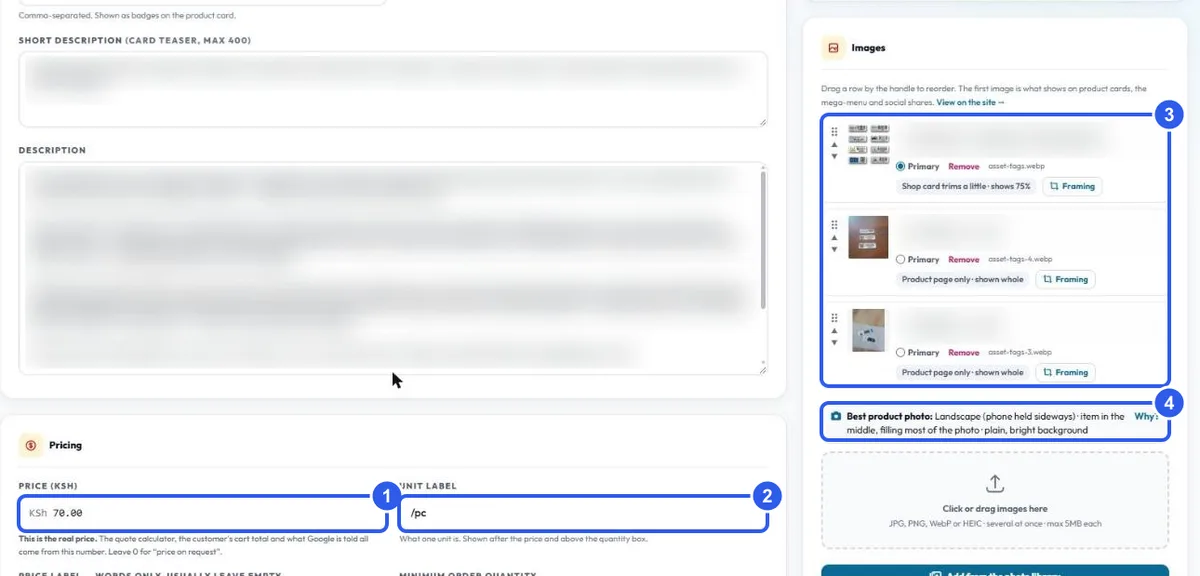
Look at the small print under the price box. It says this is the real price, and that the quote calculator, the customer’s cart total and what Google is told all come from this one number. That matters more than it sounds. On many sites a price is typed into the page text in three places, and after the next price rise one of them is always wrong. Here you change it once. It also travels further than your own page: Google says shoppers can see a product’s price right in search results, so a stale number can greet a buyer before they ever reach you.
Two smaller things on the same screen. Leaving the price at 0 shows “price on request” instead of a number, which suits work you always quote. And the first photo in the list is the one buyers see in the product grid and on WhatsApp when someone shares the link, so drag your best photo to the top.
Grouping what you sell
Categories are the shelves. They decide the filters a buyer uses and the groups in the site’s menu. Each one has a website status (published, or a draft that buyers cannot see yet) and a display order, where a lower number comes first.
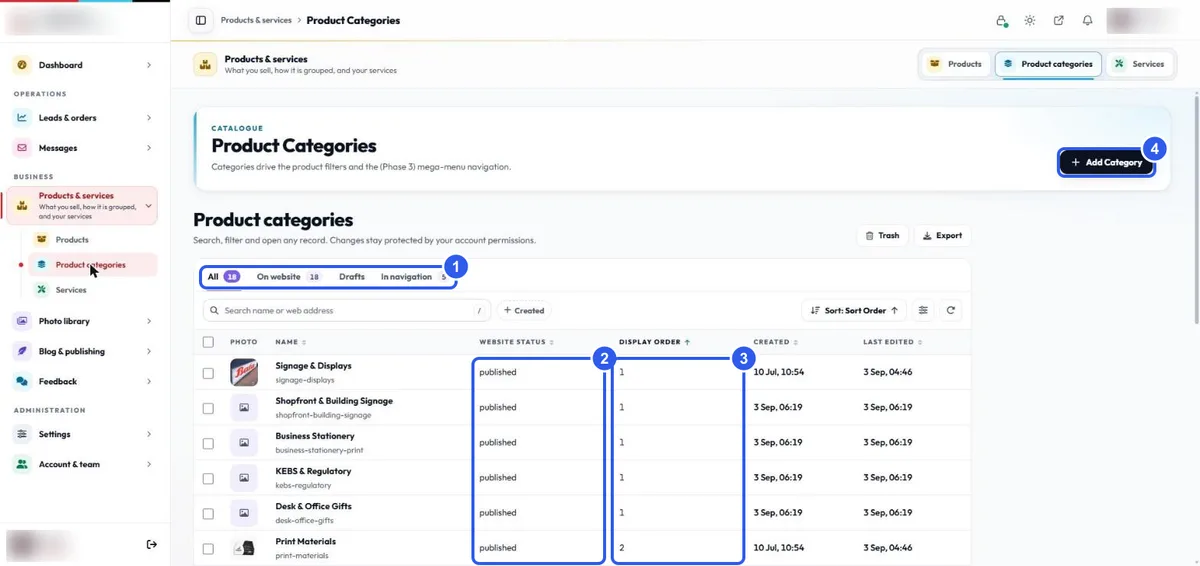
A new category can sit as a draft while you fill it with products, then go live in one step. That avoids the empty shelf a buyer sometimes lands on from Google.
Writing a blog post today that goes out next Thursday
Most small businesses blog in bursts: three posts in a good week, then nothing for two months. Google reads a site that goes quiet as a site nobody is minding. The publishing desk is built to stop that.
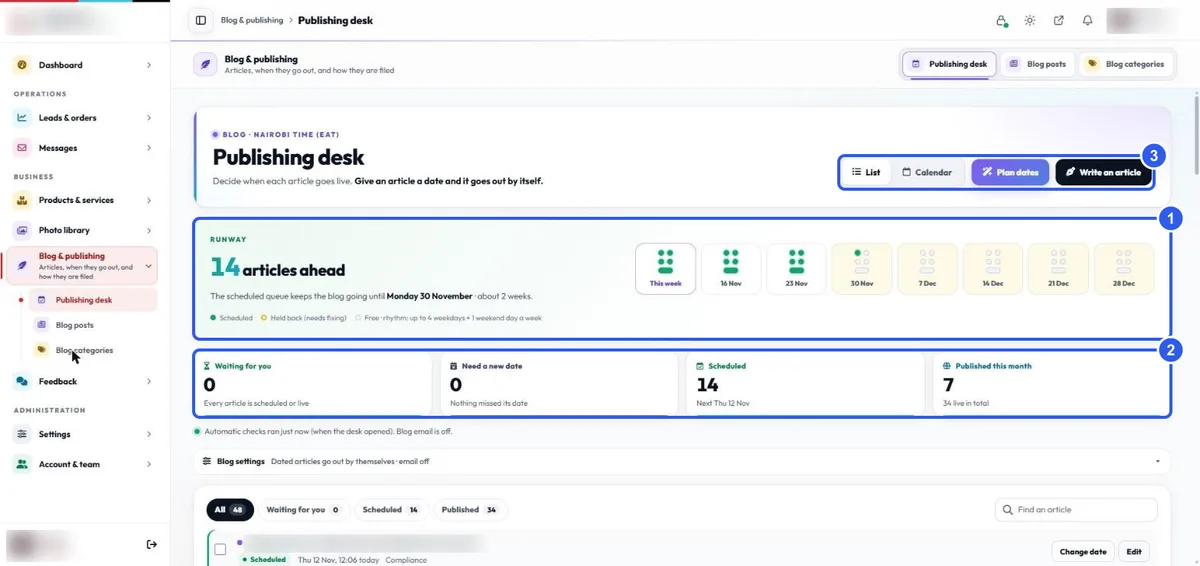
The idea is simple. You give a finished post a date and time, and it goes live by itself at that minute, Nairobi time. The runway along the top shows how far ahead you are covered. In the screenshot it reads 14 articles, enough to keep the blog going for about two weeks. Light boxes on the right are weeks with nothing planned yet.
The calendar view is where most owners end up living.
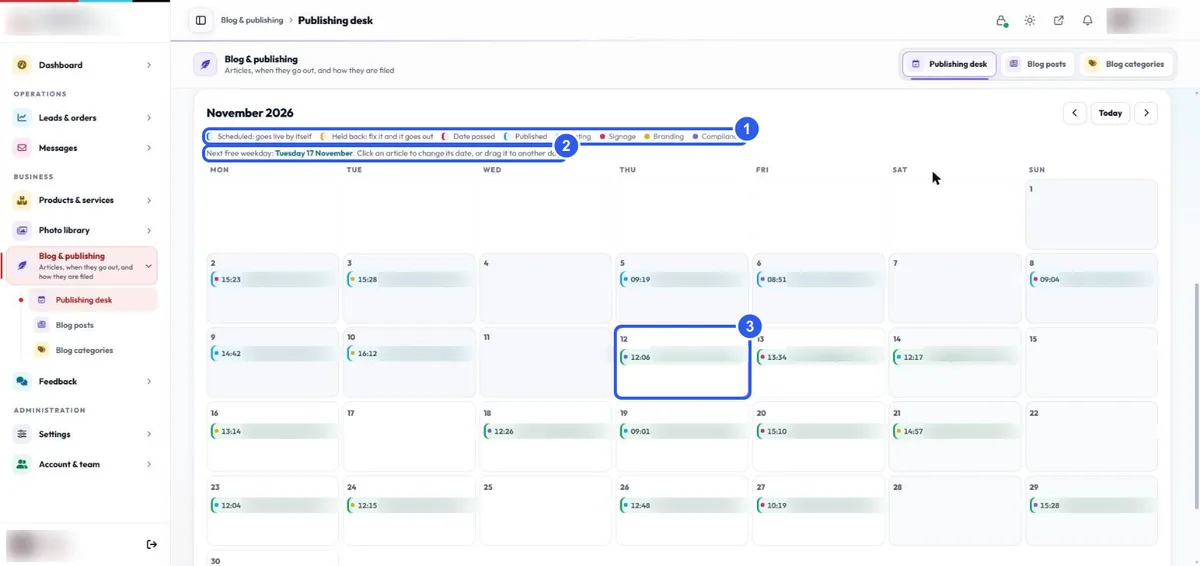
Each post shows its time and a colour for its topic, so a week with four posts on the same subject stands out at a glance. Change your mind about a date and you drag the post to another day. The desk also keeps a gentle rhythm, here up to four weekdays and one weekend day a week, so posts do not bunch up.
Seeing who visited, in plain words
Google Analytics is powerful, and our guide to reading Search Console and Analytics walks through it. Most owners still want a quicker answer to “did more people find us this month?” This admin counts visits itself, without cookies and without storing anything that identifies a person, so it still counts the visitor who said no to the cookie banner.
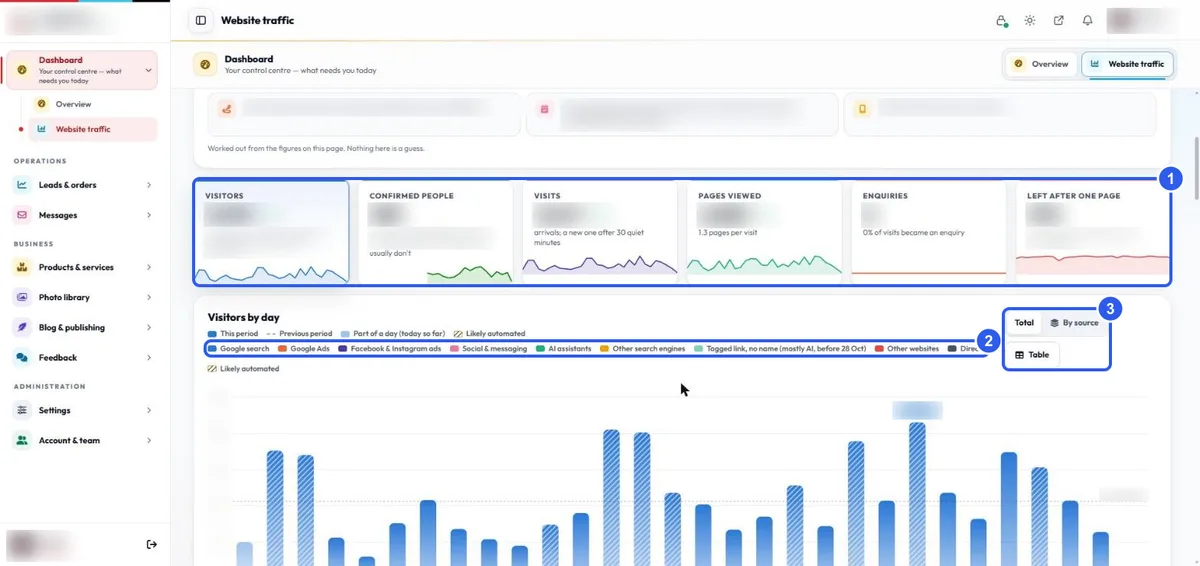
Above those cards sits a short summary written in sentences, such as which source brought the most visits, which day was busiest and how many visitors were on a phone. Bars with stripes mark visits that look automated, because a lot of website traffic is software, not people, and counting it as customers makes a quiet month look busy.
The card to watch is Enquiries. Visitors are only interesting if some of them get in touch. If thousands visit and nobody enquires, the problem is usually on the page itself, and our guide to traffic that brings no enquiries goes through the usual causes.
The same admin on a phone
Most of the owners we work with run their business from a phone, so the admin has to work there too. On a narrow screen the menu folds into tabs along the top, the calendar shrinks to coloured bars, and every box stays wide enough to type in.
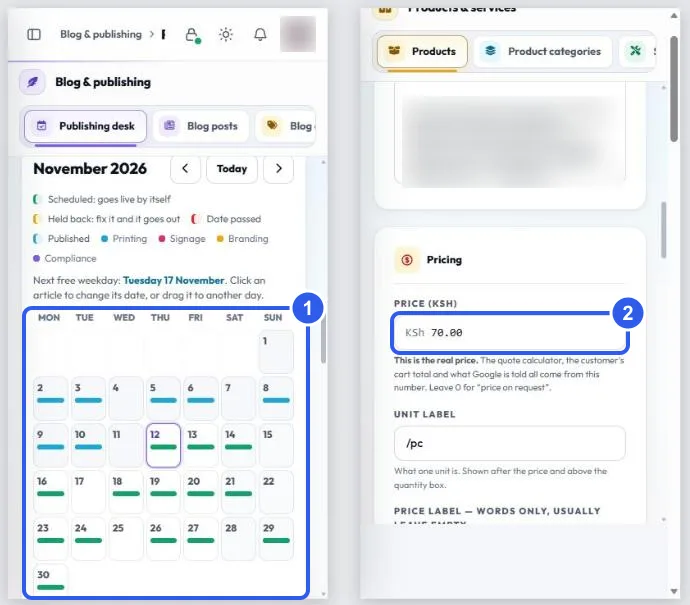
Changing a price at the counter or moving tomorrow’s post from a matatu is realistic. Writing a 1,200-word article is not, and nobody should try. Save the long work for a laptop.
Five things new owners get wrong in the first month
Typing the price into the description. It looks fine until the price changes and the description still says the old number. Put prices in the price box only.
Deleting instead of hiding. A product you stopped selling for the season can go back to draft. Deleted items go to the trash, which is easy to forget, and the page’s address may already be on Google.
Leaving the first photo to chance. Whichever photo sits first is the one on WhatsApp shares. A dark phone snap in that spot costs more enquiries than any other single mistake we see.
Publishing everything on the day it is written. Five posts on a Monday and silence for a month helps nobody. Give them dates a few days apart.
Sharing one login. When a staff member leaves you cannot take back a password they memorised. A separate sign-in can be switched off without touching anyone else’s.
A short glossary of admin words
- Draft
- Saved in the admin but not on the website. Nobody outside can see it.
- Published
- Live on the website for everyone.
- Scheduled
- Given a future date and time; it publishes itself then.
- Web address (slug)
- The last part of a page’s address, such as
/asset-tags/. Change it only if you must: links and Google results point at the old one. If it has to change, the old address should forward to the new one; Google recommends a permanent redirect and warns that rankings can wobble for a few weeks. - Featured
- Starred to appear in a special spot, usually the home page.
- Primary photo
- The first photo of a product, used on cards and when the link is shared.
- Runway
- How far ahead your scheduled posts will keep the blog going.
What comes with an Omokah website
Every website we build comes with an admin panel and training on it, and you own the site and the domain in writing. What the admin holds follows what the site does. Our online shops let you add and change products, prices and photos and see orders, and they take M-Pesa at checkout (our guide to M-Pesa payments on a website explains how that works). From the Standard website package up you also get the blog scheduler and visitor numbers in the admin. The website design page sets out each package, and our guide to what a website costs in Kenya compares them with the market.
For the first three months after launch, minor changes you would rather not make yourself are free; after that, our website care plans cover the jobs you would rather hand over. If something we built breaks in the first year, we fix it at no charge. Before you sign with anyone, ask to see their admin the way this post shows ours, and read our guide on what a website quote should include for the other questions worth asking.
Read next: who owns your website and domain, a ten-minute check of every account your site depends on. Want to see an admin like this for your own business? Send us a message on WhatsApp and we will show you one on a call.
About these screenshots: taken 12 November 2026 in the admin panel of a client’s website that Omokah built, without saving or changing anything. Names, staff, titles, descriptions and all traffic figures are hidden. Screens change as we improve them, so labels may move.
Sources: read 12 November 2026: Google Search Central, site moves with URL changes · Google Search Central, product structured data.
Want this done for you, or checked? Message us on WhatsApp about this guide.
Ask us on WhatsAppQuestions people ask
Is it easy to update a website yourself?
It is if the site was built with an admin panel made for your business. Changing a price, a photo or a product description takes a minute or two in the screens shown in this post, and none of it needs code.
How do I update my website content?
Sign in to your admin with the link your developer gave you, open the section for what you want to change (products, blog posts or page words), make the change and save. Most admins also let you keep a change as a draft until it is ready.
Where do I sign in to my website admin?
Use the link your developer sent you at handover and bookmark it on your phone. Do not share it in public places, and do not give your password to anyone: add a separate sign-in for each person instead.
How do I change my website admin password?
Usually from your own account settings once you are signed in, or with the “forgot password” link on the sign-in page. If neither is there, ask whoever built the site to add it.
Can I use the admin on my phone?
The admin in this post works on a phone: the menu folds into tabs and the calendar shrinks to coloured bars. Long writing is still easier on a laptop.
What if I break something?
Most changes can be undone the same way you made them, and drafts let you check before anything goes public. On an Omokah site the first three months of minor changes are free, and if something we built stops working in the first twelve months we fix it at no charge.
Was this guide useful?
Your answer tells us what to write next.
Thank you: that helps.
Tell us what was missing